Pet Tracker Usage Guide
This guide provides detailed instructions on how to use the key features of Pet Tracker.
User Account
Your user account is the central hub for managing your pets and tracking their dietary.
Creating an Account
- Sign Up: Navigate to the 'Get Started' page.
- There are 4 ways to create account:
Enter Your Details (App's Form): Provide your email address and a secure password.Google/GitHub: Using Google or GitHub to create account.Line: Using Line to create account.Using line to sign up, the page will redirect to the form for filling email and password
- Register: Click the 'Sign Up' button to create your account.
Signing In
- Sign In: Go to the 'Sign In' page.
- Enter Your Credentials: Enter your email and password.
- Access Your Account: Click the 'Sign In' button to access your dashboard.
Third-Party Sign-In
You can also sign in using a third-party provider for a more streamlined experience.
Timezone
App will automatically set your local timezone during your account settings to ensure all tracking data is accurate.

Pet Management
The 'Pets' section allows you to create and manage profiles for each of your pets.
Adding a Pet
- Go to Pets: Navigate to the 'User's Cats' section from the main menu.
- New Pet: Click the 'Add A Cat' button.
- Enter Pet Details: Fill in your pet's name, species, and other relevant information.
- Save: Click 'Add A Cat' to save the profile.
Viewing and Editing Pets
- Navigate to the 'User's Cats' section from the main menu. The dropdown menu will show all the pets' name. Click on a pet's name to see their detailed profile.
- Edit: From the pet's profile page, click 'Edit pet's name Porfile' to update their information.

Dry Food Storage
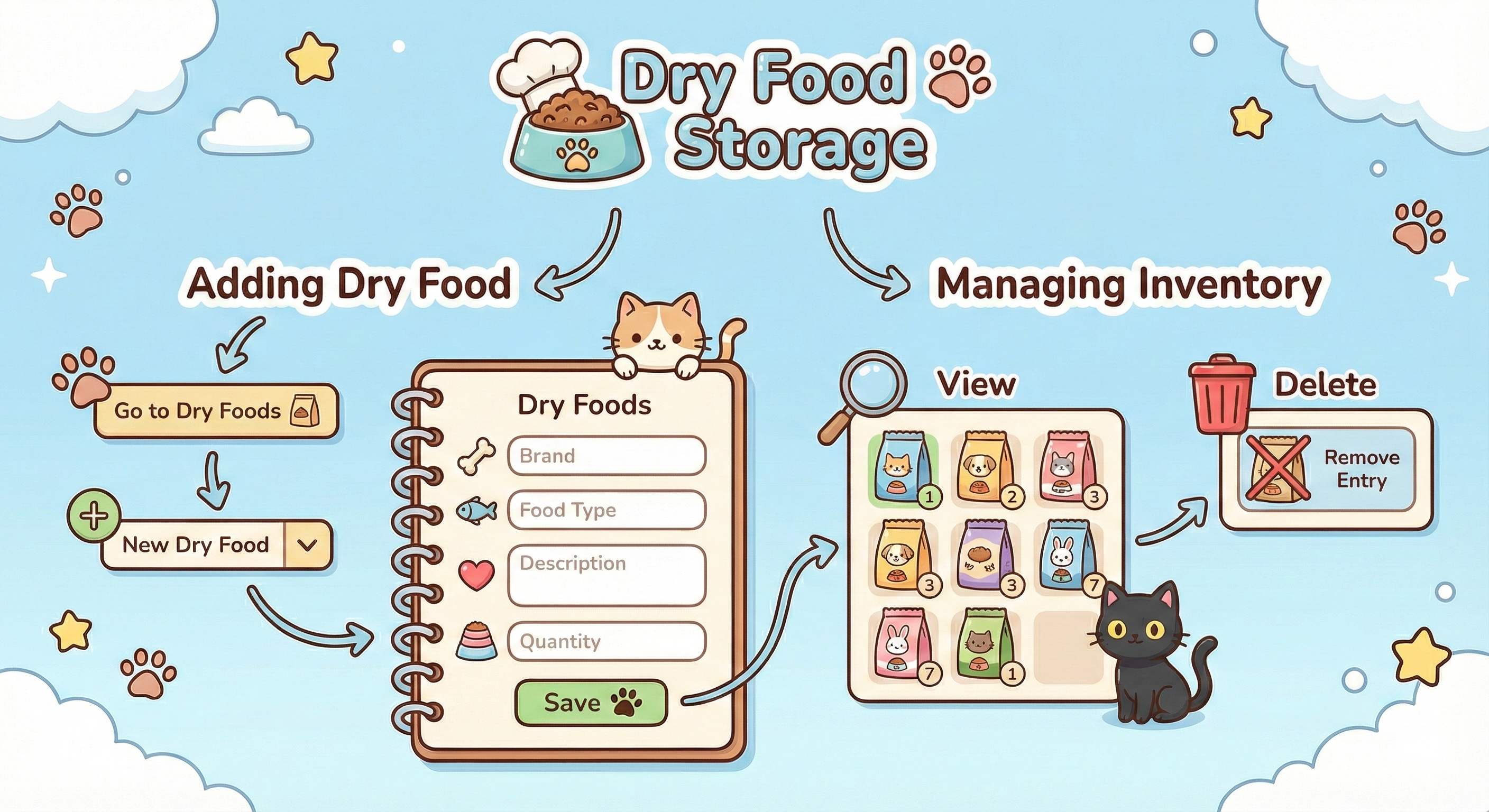
The 'Dry Food Storage' feature helps you keep track of your pet's dry food inventory.
Adding Dry Food
- Go to Dry Foods: Navigate to the 'DryFood Storage' section.
- New Dry Food: Click the 'Add Dry Food' in the dropdown menu.
- Enter Food Details: Provide the brand, food type, description/brand, and quantity of the dry food.
- Save: Click 'Add Dry Food' to add it to your inventory.
Managing Inventory
- View: See a list of all your dry foods and their current quantities.
- Delete: Remove a dry food entry from your inventory.
Trackers
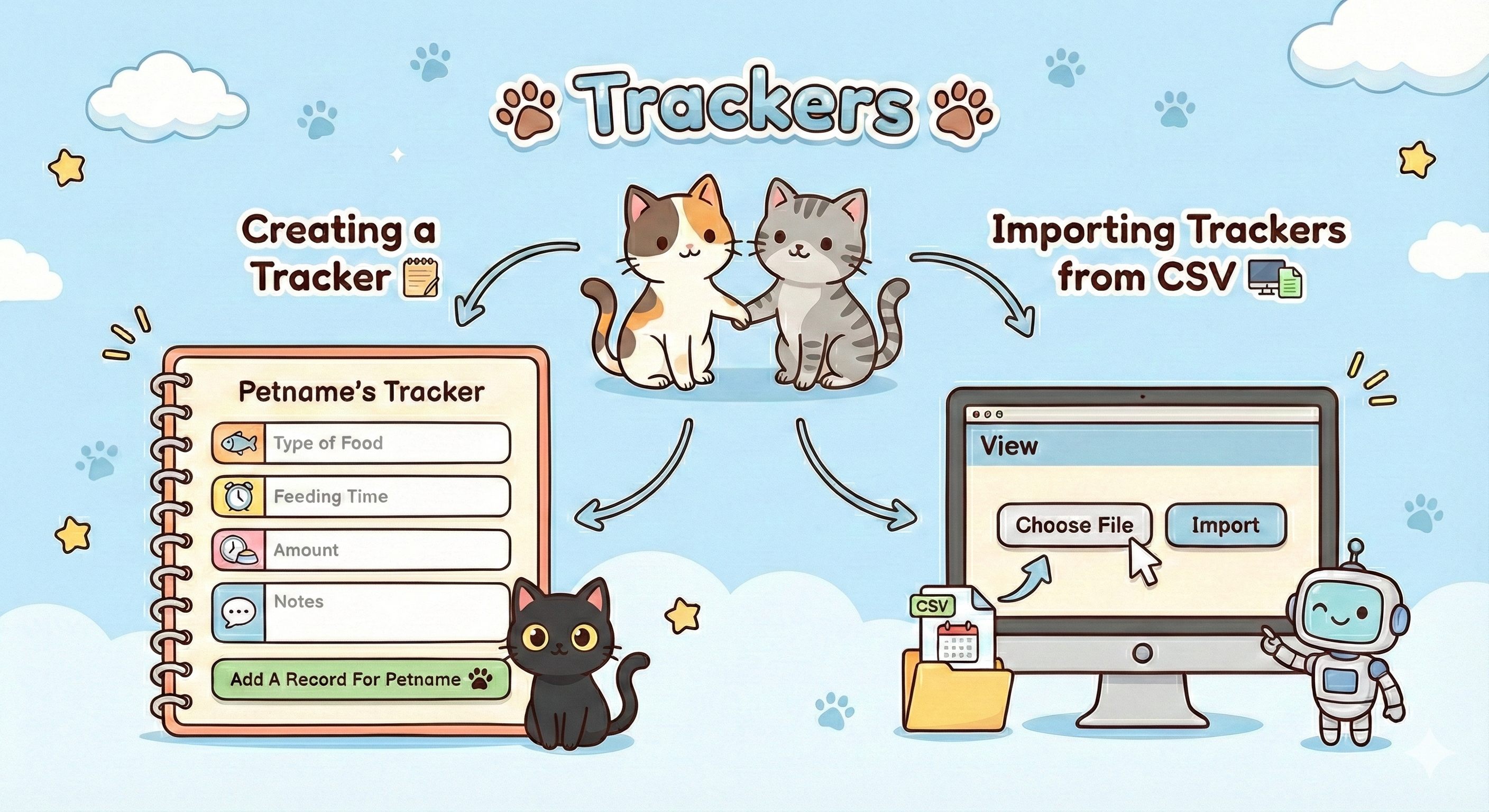
Trackers are used to log your pet's daily doetary, such as feeding times, amount, and health observations.
Creating a Tracker
- Go to Trackers: Navigate to the 'Trackers' section.
- New Tracker: In petname's tracker page, click on 'New Tracker For Petname' button
- Select Pet: Choose the 'Petname's Tracker' in the dropdown menu.
- Enter Details: Fill in the dietary details, such as the type of food, feeding time, and any notes.
- Save: Click 'Add A Record For petname' to log the dietary information you want to create for.
Importing Trackers from CSV
For bulk data entry, you can import trackers from a CSV file.
- Go to Trackers: Navigate to the 'Trackers' section.
- Import CSV: Click the 'Choose File' button.
- Choose File: Select the CSV file you want to import.
- Upload: Click 'Import' to upload and process the file.
📋 Import Guide Summary
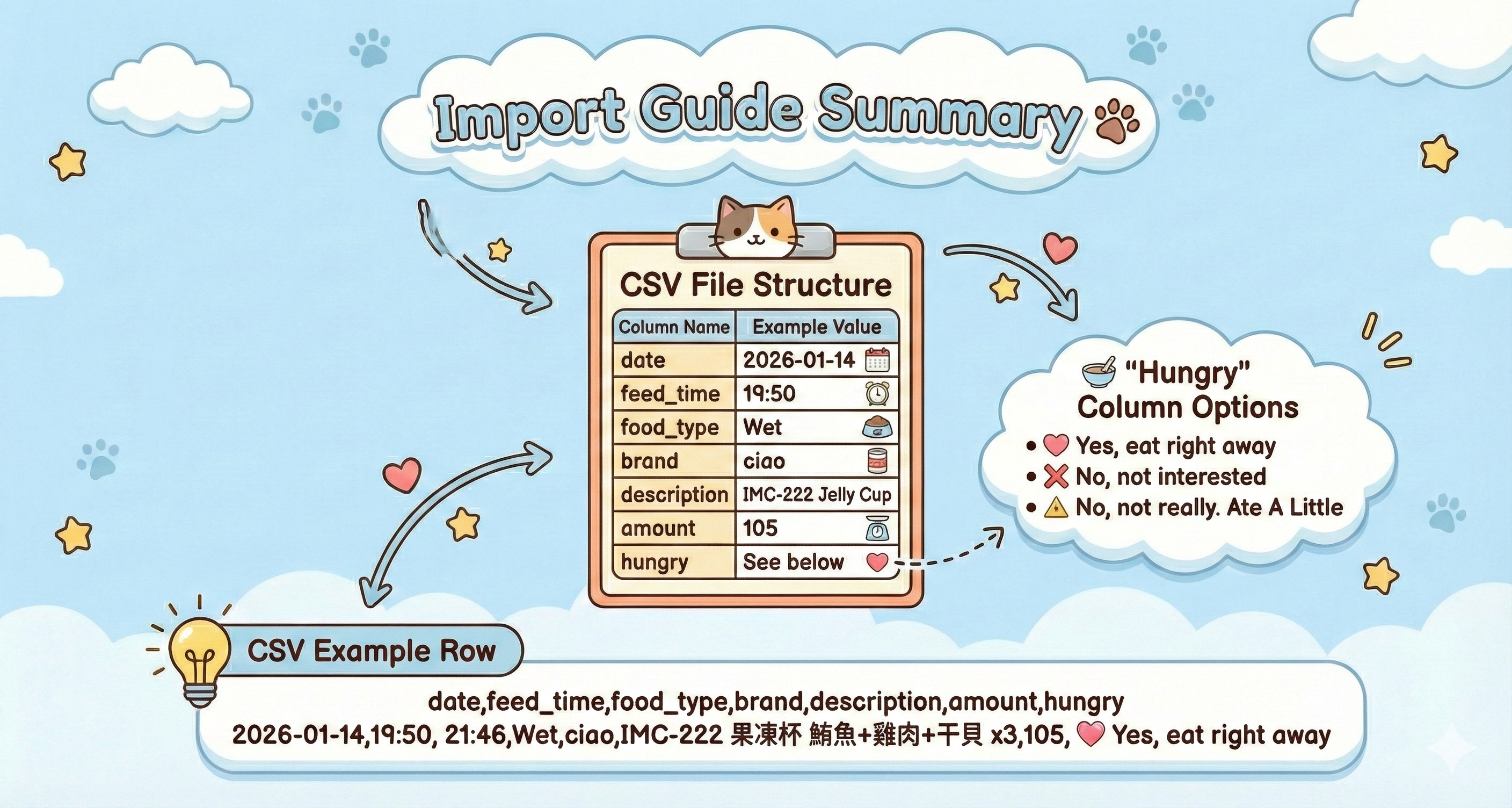
To successfully import your cat's diet records, please ensure your CSV file includes the following columns and follows these value conventions:
| Column Name | Description | Example Value |
|---|---|---|
| date | The date of feeding | 2026-01-14 |
| feed_time | The time food was served | 19:50 |
| food_type | Type of food (Wet/Dry) | Wet |
| brand | Brand name | ciao |
| description | Product name or flavor | IMC-222 Jelly Cup |
| amount | Total amount served (g) | 105 |
| hungry | Cat's appetite status | See below |
🥣 'Hungry' Column Options
Please use one of these exact phrases (including the symbols) for the hungry column:
- 💖 Yes, eat right away
- ❌ No, not interested
- 🔺 No, not really. Ate A Little
💡 CSV Example Row
You can use this format for your file to import:
| date | feed_time | food_type | brand | description | amount | hungry |
|---|---|---|---|---|---|---|
| 2026-01-14 | 19:50, 21:46, | Wet | ciao | IMC-222 果凍杯 鮪魚+雞肉+干貝 x3 | 105 | 💖 Yes, eat right away |
| date | 2026-01-14 |
|---|---|
| feed_time | 19:50, 21:46, |
| food_type | Wet |
| brand | ciao |
| description | IMC-222 果凍杯 鮪魚+雞肉+干貝 x3 |
| amount | 105 |
| hungry | 💖 Yes, eat right away |